


Hire the author: Dennis M
Shape Loading View Android Image Source unsplash.com.
Here is the GitHub link for this project shape-loading-android.
Introduction
Everybody will agree that an app will get incredible interest from users when it has a great design. If you disagree try publishing an app that has an awful UI and see what happens. The huge majority of apps in the Play Store use the normal progress bar or spinner to show progress. Nonetheless, some high-quality apps innovate with nice animations to show the user that he should wait. Let’s see how to make a different loading animation using different shapes and colours.
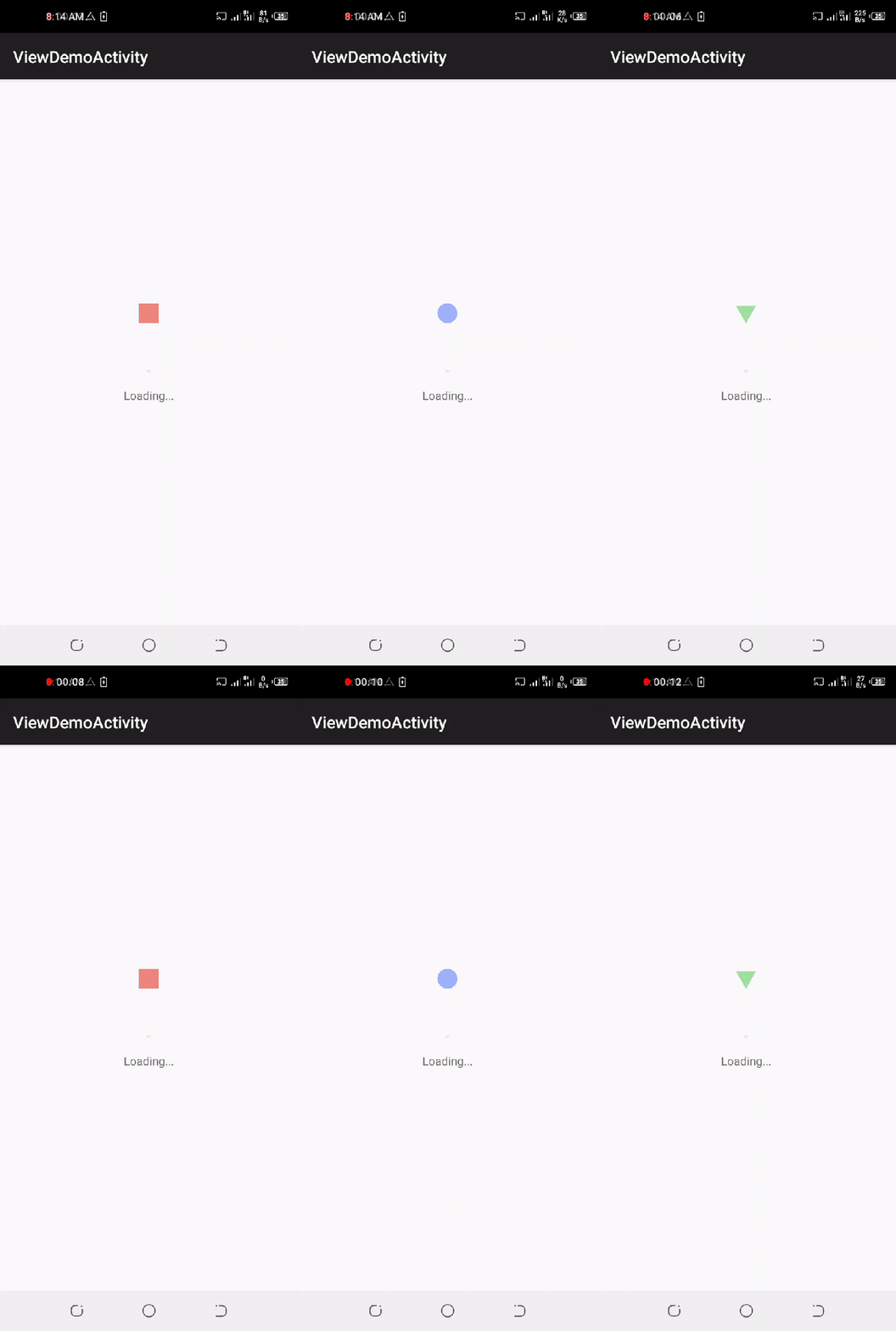
In this article, we will create a shape loading view to indicate the progress of a task in android. The shape loading view will be inside activity and also within a dialogue box depending on the user’s preference. We will use Java programming language for the development of this android project.
This project will offer insights into the working of shape loading view in android. It will help the reader to get a better understanding of the inner-machinery that goes behind implementing such features.
Photo Preview


Glossary
Progress Bar Android ProgressBar is a visual watch that shows some progress. The Android Progress bar shows a bar representing completion. It is helpful because it gives the user an idea of when to complete their task. Using ProgressBar is a good practice for the user experience as it reflects the progress of the given task (such as downloading a photo) to the user.
Steps:
Step 1: Adding required dependencies
Firstly, go to the app-level build.gradle file and add the following dependency:
Secondly, the build.gradle file will be as shown below:
Step 2: Creating the activity_main.xml file
Now, come to your activity_main.xml file which is responsible for designing the layout of the app and it’s located in the layout folder under the res folder. Change your default to Linear Layout then add additional attributes like this:
As shown above, the activity_main.xml is connected to two layouts which are activity_view_demo.xml and activity_dialog_demo.xml. Go to the layout folder in the res folder and create a new layout called activity_view_demo.xml and add the following code as shown below.
Create another layout called activity_dialog_demo.xml and add the following code as shown below.
Step 3: Creating the LoadingView.java file
The startLoading function will be the first to implement with the help of the constructor LoadingView. Then usedObject animator in the upThrow function to enable the different shapes to get the bouncing effect as shown below. Create another object called mFreeFallRunnable which is responsible for rotating the different shapes using the x and y-axis. Use the setVisibity function to display and hide the progress bar when necessary. Finally, the freeFall function uses the AnimatorSet object to give the progress bar the downfall effect.
Step 4: Creating the ShapeLoadingDialog.java file
You will use the shapeLoadingDialog constructor to make the Dialog box work effectively as shown below.
Step 5: Creating the ShapeLoadingView.java file
This activity will only be able to work by linking it to the few activities above and by using the several functions in place. It is also where we are changing the different shapes, circle, triangle by using the changeShape function. Lastly, the duration of how each shape changes to the next shape is dependent on the magic number.
Step 6: Creating the DialogDemoActivity.java file
Use the ScrollShow set functions as shown below so as to enable the use of Header movement in the android application.
Step 7: Creating the ViewDemoActivity.java file
Go to the onCreate function as shown below. It is responsible for making objects move according to a preset program like rotating the different shapes.
Step 8: Creating the MainActivity.java file
Now, come to your MainActivity.java file. We’ll declare two buttons to display ViewDemoActivity and DialogDemoActivity. The other important function to use in the main activity is the onCreateOptionsMenu function. It is responsible for inflating the menu; this adds items to the action bar if it is present.
Finally, your final MainActivity.java will be like this.
Above all, use the onOptionsItemSelected function which will Handle action bar item clicks here. The action bar will automatically handle clicks on the Home/Up button, so long as you specify a parent activity in AndroidManifest.xml.
Future Directions
Finally, the future directions involve displaying the shape loading view inside an app that requires the progress bar to be displayed while waiting for the next step to process; therefore making it able for the user to proceed to the next step successfully.
Learning Strategies and Tools
The most useful tool used for acquiring critical information for the development of this project is the android developer manual. Zeroing in on the shape loading view is responsible for displaying ecstatically the app is in progress. Instead of the spinner progress bar which is commonly used.
In conclusion, we have learned about how your app can use shape loading view in android. Activities now have to implement the different functions in their respective activities to implement the shape loading view in android.
Reflective Analysis
Figuring out how to utilize shape loading view in android was a great learning experience. It is an astonishing instrument that makes the comprehension ScrollView endpoints simple
One of its most common uses in android is used to show activity statuses such as status analysis or file downloading etc. On Android, by default, the progress bar will be displayed as a rotating wheel but if we want it to be displayed as a horizontal bar then we need to use the style attribute as horizontal.
In conclusion, I spent 72 hours finishing the project and the blog. Eventually, everything is available in this GitHub repository.
Link to the previous post: https://blog.ldtalentwork.com/2020/09/16/how-to-check-internet-connection-programatically-on-android-from-a-button-click-in-kotlin
That’s all for this tutorial!